

Images are often the heaviest files on a WordPress page. If you upload them straight from a camera or stock library, visitors may download far more data than the design needs.
Oversized images can slow the first page view, especially on a mobile connection. The right fix combines suitable dimensions, an efficient file format and sensible compression.
You can handle this before upload or automate it inside WordPress.
TL;DR: Resize images for their intended display size, compress them at a quality you have checked, and deliver WebP or AVIF when your setup supports it. A WordPress plugin can automate new uploads and process the existing media library.
What Is Image Optimization in WordPress?
Image compression reduces the file size of an image without meaningfully affecting how it looks on screen. A camera photo may be several megabytes even though the page displays it at a much smaller size. Resizing and compression can remove much of that unnecessary weight. Check the result visually because the best quality setting depends on the image.
There are two types of compression worth knowing:
Lossy compression removes image data to produce a smaller file. At moderate settings it often works well for website photographs, but inspect fine details, gradients and text before publishing.
Lossless compression reduces file size without discarding image data. The savings are usually smaller. Logos and simple graphics may also be better served as SVG files when the artwork and site allow it.
Why Image Optimization Matters
Large images are a common source of page weight. A hero image can also become the page’s Largest Contentful Paint element, so its dimensions, file size and loading priority deserve particular attention.
Google uses Core Web Vitals within its page-experience systems, but speed is one signal among many. Image optimization also helps visitors on slower devices and connections, whether or not a ranking changes.
Image compression is one part of a broader performance plan. For everything else that affects your WordPress site speed, see our full guide on 10 ways to boost page speed for your WordPress site.
Before You Compress: Get the Dimensions Right
Compression reduces file size. Resizing reduces dimensions. You need both.
If a theme displays a hero image at roughly 1400 pixels wide, a 4000-pixel source is usually unnecessary. WordPress can generate responsive image sizes, but starting with a reasonably sized original saves storage and avoids oversized fallbacks. Resize first, then compress.
Within our WordPress themes for Small Businesses we include the recommended dimensions on every placeholder image, so you can see exactly what size each image should be before you upload. If you’re using a different tool, PicResize handles resizing quickly without needing Photoshop.
Use the smallest dimensions that still look sharp at the largest rendered size. File weight has no universal ceiling: a small icon should be tiny, while a wide photographic hero may need more data. Test the finished page on mobile instead of forcing every image under one number.
Option 1: Compress Before Uploading (No Plugin Needed)
If you prefer not to add another plugin, compressing images before uploading is a perfectly solid approach. You compress them once using a free tool, then upload the optimised file.
The best free tools for this:
- TinyPNG / TinyJPG: Drag in supported images, compare the output and download the compressed versions. Service limits and supported formats can change, so check the tool before processing a large batch.
- Squoosh: Made by Google. Gives you more control over compression settings and lets you compare before and after side by side before downloading. Good if you want to fine-tune the result.
- Compressor.io: Another solid online option that supports JPEG, PNG, GIF, and WebP with both lossy and lossless modes.
The main downside of this approach: it only covers new images. If you have hundreds of existing images already uploaded to WordPress, you’d need a plugin to optimise those retroactively.
Take TinyJPG as an example:
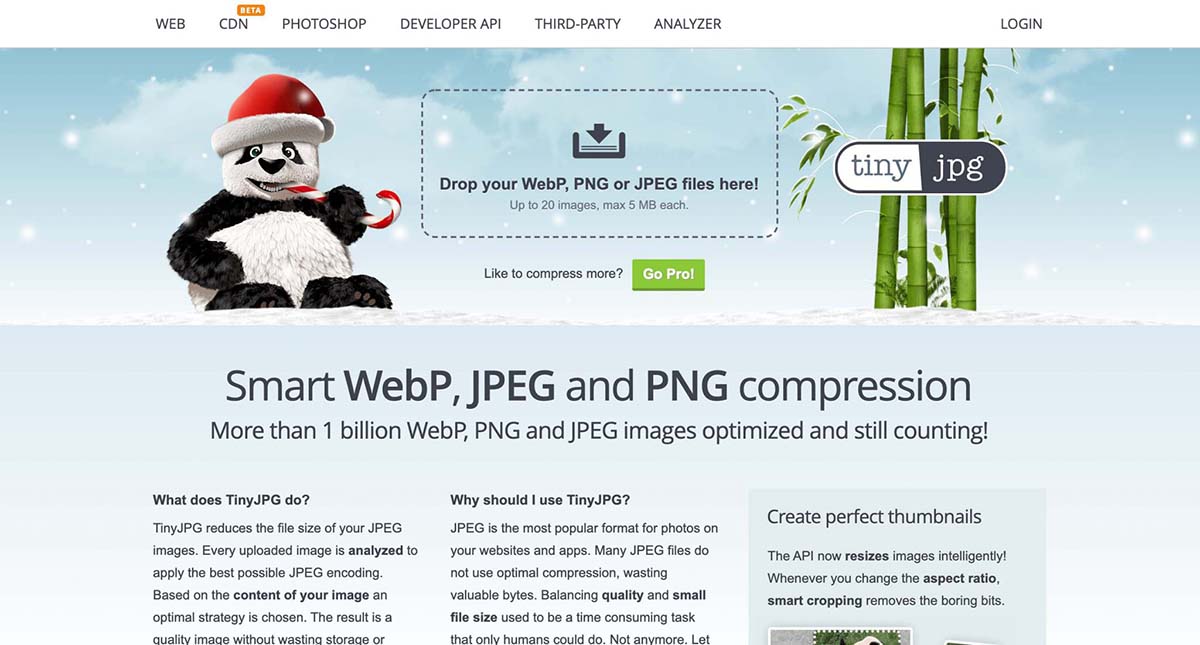
Drag your images into the area labelled “Drop your WebP, PNG or JPEG files here!”
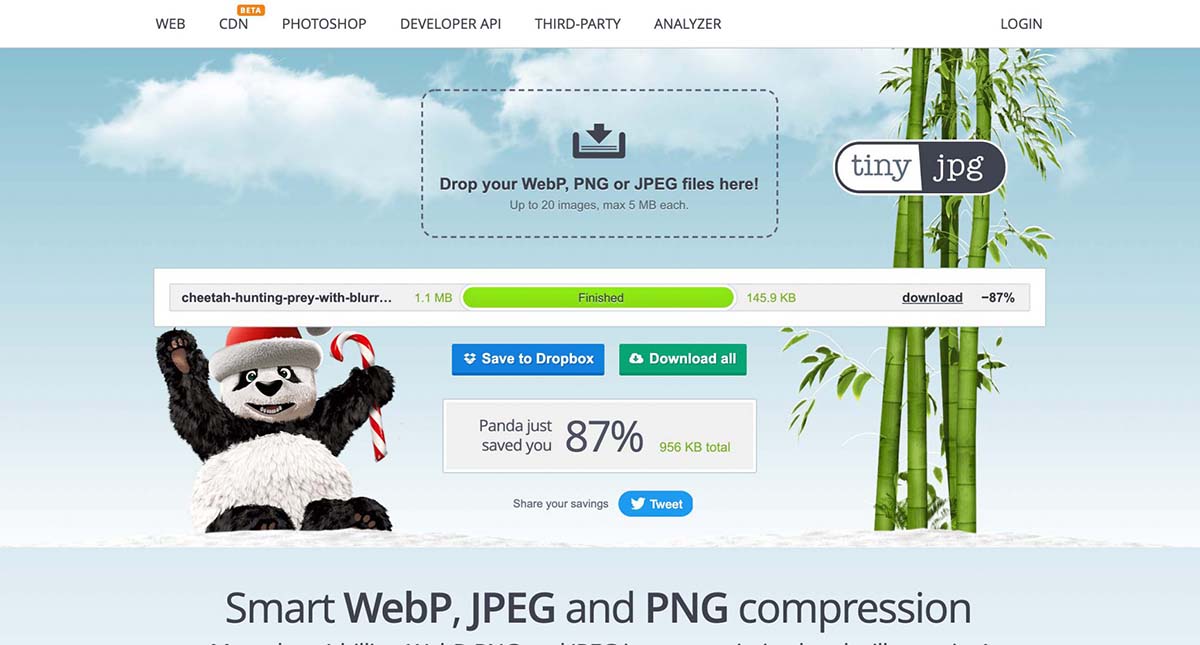
Download the compressed image when the tool has finished.
In the example above, TinyJPG reduces the file from 1.1 MB to 145.9 KB. Inspect your own result at its displayed size because the visible quality depends on the source image and compression level.
Option 2: Use a WordPress Plugin (Recommended for Most Sites)
A plugin handles compression automatically, new images are optimized on upload, and existing images can be bulk-processed in one go. For most WordPress sites, this is the more practical approach.
There are many options available, but these three are consistently worth considering:
ShortPixel: Supports automatic optimization and modern image formats. Check its current plan limits and test the output on a copy of your site.
Imagify: Provides automatic optimization, bulk processing and modern format options through a guided interface.
Smush: Provides image optimization and related media tools. Review the current free and paid feature lists for the formats and bulk-processing limits you need.
Choose based on image quality, backup options, modern-format delivery, recurring cost and compatibility with your host or CDN. Test a few representative photographs and graphics before processing the full library.
To install any of these, go to Plugins → Add New in your WordPress dashboard, search for the plugin name, click Install Now, then Activate. Follow the plugin’s current setup instructions and keep original-image backups until you have checked the results. Use its bulk tool for the existing library, preferably after taking a site backup.
Don’t Overlook WebP
WebP is a modern image format that often produces smaller files than JPEG or PNG at comparable visual quality. AVIF can be smaller again for some images. Core Web Vitals measure the resulting loading experience; they do not award points merely because a file uses WebP.
Check whether your host, CDN or image plugin already creates and serves WebP or AVIF. Avoid adding a second conversion layer until you know what the current setup does.
A Quick Checklist
Before you consider images “done” on your WordPress site:
- Images resized to the correct display dimensions before uploading
- Each image sized and compressed for its actual use
- WebP or AVIF delivery checked where supported
- A compression plugin installed to handle new uploads automatically
- Existing image library bulk-optimised
Image optimisation matters most as part of a complete performance strategy. See how it fits into a full local business website in our guides for dental websites and landscaping websites.
Frequently Asked Questions
How do I compress images in WordPress?
Use an image optimization plugin like ShortPixel or Imagify, they compress images automatically on upload and can bulk-optimize your existing media library. Alternatively, compress images before uploading using a free tool like TinyPNG.
What’s the best image compression plugin for WordPress?
There is no single best choice for every site. Compare output quality, backup and restore options, bulk processing, modern-format delivery, monthly limits and compatibility with your hosting or CDN. ShortPixel, Imagify and Smush are established options to test.
Do I need a plugin to compress images in WordPress?
No. You can compress images before uploading using free tools like TinyPNG or Squoosh. The advantage of a plugin is that it handles new uploads automatically and can optimise your existing image library retroactively.
What image format is best for WordPress?
Use JPEG, WebP or AVIF for photographs and PNG only when you need features such as lossless detail or transparency that your chosen modern format does not handle well. SVG often suits logos and simple vector graphics. Test quality and browser delivery rather than choosing one format for every image.
Does compression reduce quality?
Lossy compression can introduce artifacts, especially around text, sharp edges and gradients. Start at a moderate setting and compare the result at its displayed size before applying it to the whole library.
Should I compress images before or after uploading to WordPress?
Either works. Compressing before uploading is slightly better for server performance. Using a plugin is more practical for most sites because it handles everything automatically, including your existing image library.
Why does image optimisation matter for SEO?
Smaller, correctly sized images can improve loading performance and may improve Largest Contentful Paint when the largest visible element is an image. Core Web Vitals are part of Google’s page-experience systems, alongside many other search signals.