
If you’ve built a website but noticed it’s not loading as fast as you’d like, don’t worry, you’re not alone. Website speed is crucial for user experience, SEO, and conversion rates. Fortunately, there are many ways to enhance your site’s performance. Whether you’re in the early stages of building your site or have already launched, implementing these proven website speed optimization strategies can help your site load faster and rank higher in search engine results.
1. Choose the Right Web Hosting for Speed
Your website’s hosting plays a significant role in its loading speed. Shared hosting is often sufficient for small sites, but for better performance, consider upgrading to managed VPS hosting. Unlike shared hosting, VPS offers more resources, meaning faster load times. Cloudways is a popular managed VPS provider that offers affordable hosting packages starting at just $10/month, a great choice for those looking for speed without breaking the bank.
2. Install a Caching Plugin to Boost Page Speed
A caching plugin is essential for improving website speed. It works by creating a static version of your pages, which is served to visitors instead of loading the page from scratch every time. This drastically reduces loading times. For WordPress websites, WP Fastest Cache is a great free option. If you’re willing to invest, WP Rocket is a premium caching plugin that delivers even faster performance.
Advice: Only activate caching after you’ve finished building your website to avoid potential issues with dynamic content.
How to enable caching for your website with the WP Fastest Cache can be followed in our how to install WP Fastest Cache plugin guide.
3. Resize and Compress Images Before Uploading
Uploading large, unoptimized images is a common mistake that can slow down your website. A page with oversized images can become several MBs in size, which is far too large for a fast-loading webpage. Aim to keep your total page size below 1.5MB for optimal performance.
Use image compression tools like TinyJPG or WordPress plugins like Smush to reduce file sizes without sacrificing quality. For best results, resize your images in an image editor like Photoshop before uploading.
You can read how to apply image compression in our how to compress your images guide.
4. Limit the Amount of Content and Media
Be mindful of the content you add to your site. Every element—whether it’s an image, video, or plugin, adds to your page’s loading time. For example, a gallery with 30 images, even if compressed to 150KB each, can add up to 4.5MB. This can seriously impact your page’s speed.
Keep only the content that’s absolutely necessary for your users. Elements like embedded videos, Google Maps, and social media feeds are convenient but can slow down load times due to the external scripts they load.
5. Minimize the Use of Plugins
Plugins can offer additional functionality but can also slow down your site if you’re not careful. Regularly review your installed plugins and deactivate/delete any that you’re not using. Even unused plugins can still load unnecessary scripts and affect performance. Keeping your plugin list minimal is key for a fast website.
6. Defer JavaScript Files to Improve Speed
If you’re seeing a “remove render-blocking JavaScript” warning in Google PageSpeed Insights or similar tools, deferring JavaScript can help. This technique loads content and images before the JavaScript files, improving overall speed.
The Autoptimize plugin can help you defer JavaScript files and improve page speed. Just enable the “Defer JavaScript” option in the plugin settings to optimize your site’s load time.
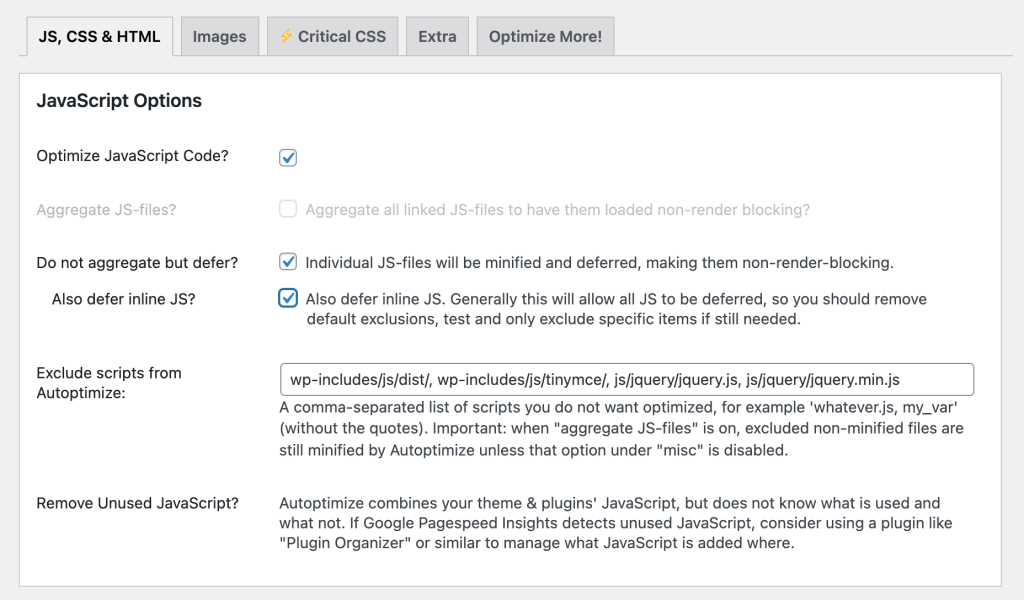
By installing the Autoptimize plugin you can enable the following settings to enable defer parsing JavaScript:
- Optimize JavaScript Code
- Do not aggregate but defer
- Also defer inline JS
7. Enable Lazy Loading for Images
Lazy loading is an excellent way to improve page load times, especially for content-heavy pages. With lazy loading, only the images that are visible in a visitor’s viewport are loaded initially. This reduces the number of elements the browser needs to load at once. Since WordPress 5.5, lazy loading is enabled by default. For enhanced compatibility, you can use plugins like a3 Lazy Load to ensure that all browsers support this feature.
Don’t forget to optimize your images before uploading them to your website, see 3. Resize and Compress Images Before Uploading before uploading
8. Self-Host Google Fonts for Faster Load Times
Many websites rely on Google Fonts for typography. However, since these fonts are hosted on Google’s servers, they can add extra load time. By self-hosting Google Fonts on your own server, you can speed up the process of loading fonts. The Local Google Fonts plugin allows you to download and host fonts directly from your server, improving your website’s performance.
Once you’ve installed and activated the plugin, visit your homepage so the plugin can scan the fonts in use. Next, navigate to Settings → Local Google Fonts, and click the “Host Locally” button at the bottom of the page to complete the process.
9. Minify and Combine CSS/JS Files
Minifying CSS and JavaScript files involves removing unnecessary spaces, line breaks, and comments from the code, which reduces the file size and speeds up load times. Tools like Autoptimize can help you minify CSS and JavaScript files automatically. This process also helps with combining multiple files into one, which reduces the number of HTTP requests your site makes, another win for performance.
If you’ve already installed the Autoptimize plugin (as mentioned in Step 6), you can easily apply minification to your CSS and JavaScript files.
- Navigate to Settings → Autoptimize in your WordPress dashboard.
- Enable the following settings:
- Optimize JavaScript Code?
- Optimize CSS Code?
- Don’t forget to click Save Changes at the bottom of the page.
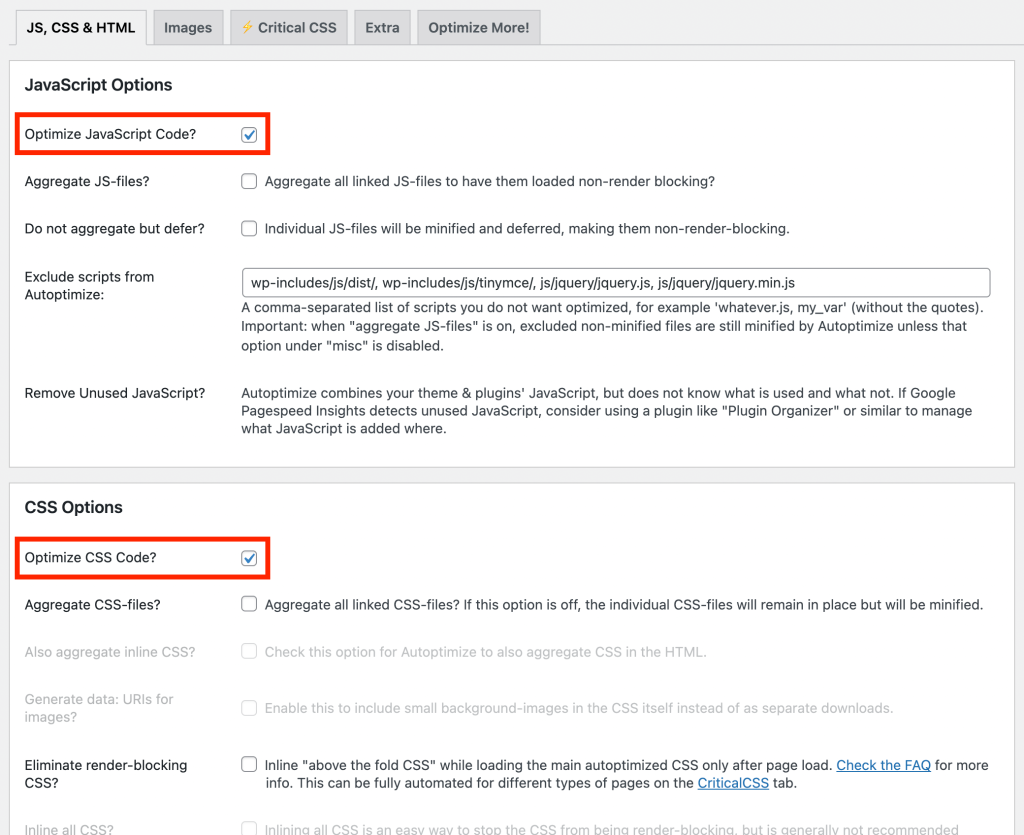
Save the settings at the bottom of the page.
While you can leave the “Aggregate JS-files?” and “Aggregate CSS-files?” options enabled, be cautious. Aggregating files combines them into a single CSS and JS file, which can sometimes break functionality depending on your theme or plugins. If you choose to aggregate, be sure to test your website thoroughly to ensure everything works correctly. For most sites, it’s better to uncheck these options.
10. Keep Your PHP Version Up to Date for Better Performance
Running an outdated PHP version can slow down your website and expose it to security risks. Newer PHP versions consistently bring performance improvements, meaning your site can load faster and handle more traffic with fewer resources.
Make sure you’re using a recent, actively supported PHP version. Most hosting providers allow you to switch versions easily from your control panel, or you can contact their support team for help.
Looking for a WordPress theme built for small businesses? Our themes combine clean design with speed optimization, so you can focus on growing your business.